Documentation Index
Fetch the complete documentation index at: https://docs.stagewise.io/llms.txt
Use this file to discover all available pages before exploring further.
Open Command Center with ⌘ K on macOS or Ctrl+K on Windows/Linux.
Command Center is the fastest way to jump between agents, browser tabs, and settings. Type to filter results, press Enter to open the selected item, or use the item shortcuts shown in the footer.
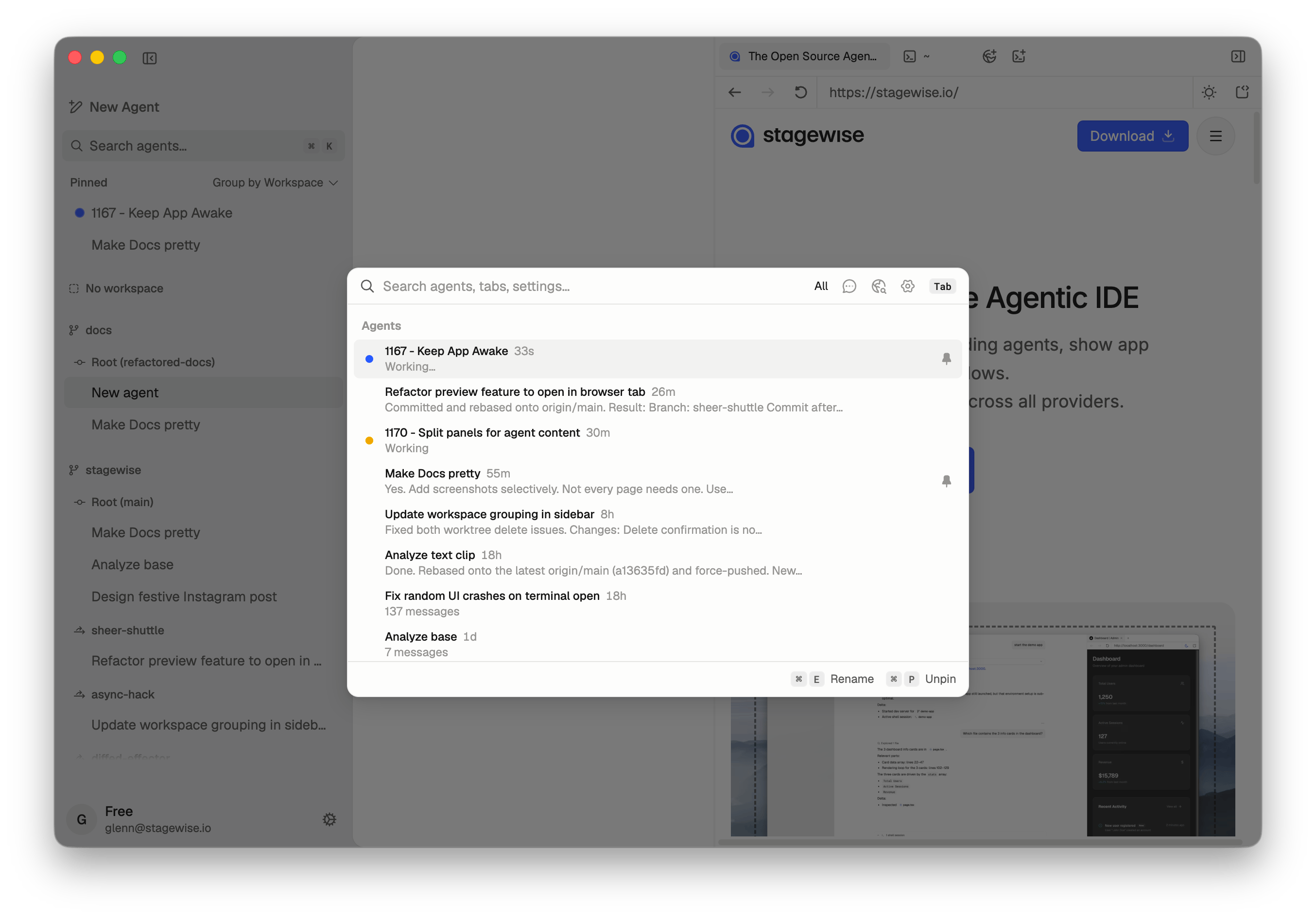
Search across agents, browser tabs, and settings without leaving the keyboard.
Search modes
Command Center has four modes:
| Mode | What it searches |
|---|
| All | Agents, browser tabs, and settings |
| Agents | Active agents and recent agent history |
| Browser | Browser tabs |
| Settings | Settings sections and common configuration pages |
Press Tab to move to the next mode. Press Shift+Tab to move to the previous mode.
Agents
Use the Agents mode to find active agents and recent chat history.
Agent results show status context such as current activity, waiting state, errors, unread state, and pinned state. Select an agent and press Enter to open it.
Available agent actions:
| Action | macOS | Windows / Linux | Notes |
|---|
| Rename selected agent | ⌘ E | Ctrl+E | Opens inline rename |
| Pin or unpin selected agent | ⌘ P | Ctrl+Shift+P | Pinned agents stay at the top of the sidebar |
| Delete selected agent | ⌘ D | Ctrl+Shift+D | Disabled while the agent is working |
Deleting an agent requires confirmation. Press Enter to confirm or Esc to cancel.
Browser tabs
Use the Browser mode to switch between open browser tabs.
Browser results include page title, URL, favicon, active state, and pinned state. Terminal tabs are not listed in Command Center browser search.
Available tab actions:
| Action | macOS | Windows / Linux | Notes |
|---|
| Open selected tab | Enter | Enter | Switches to the tab |
| Copy selected tab URL | ⌘ C | Ctrl+C | Copies the URL to the clipboard |
| Close selected tab | ⌘ W | Ctrl+W | Closes the tab |
| Pin or unpin selected tab | ⌘ P | Ctrl+Shift+P | Pinning makes the tab global; unpinning scopes it to the current agent |
When you open a tab that belongs to another agent, stagewise switches to that agent and then opens the tab.
Settings
Use the Settings mode to open configuration pages directly.
Searchable settings include:
- Models & Providers
- Set API Keys
- Custom Providers
- General Agent Settings
- Skills & Context files
- Plugins
- Browsing Settings
- History
Selecting a settings result opens Settings at the matching section.
Keyboard navigation
| Action | Shortcut |
|---|
| Open or close Command Center | ⌘ K / Ctrl+K |
| Move selection down | ↓ or Ctrl+N |
| Move selection up | ↑ or Ctrl+P |
| Open selected item | Enter |
| Close Command Center | Esc |
| Next mode | Tab |
| Previous mode | Shift+Tab |
Most global stagewise shortcuts are disabled while Command Center is open. This prevents background actions from firing while you search.
Focus behavior
Opening Command Center moves keyboard focus to the stagewise UI. If you opened it while a browser tab or terminal had focus, closing it restores that focus when possible.