

WORKSPACE.md
When you connect a workspace, stagewise generates aWORKSPACE.md file in .stagewise/. This is the primary way the agent understands your project at a high level:
- Project type, languages, and runtime
- Package structure and dependency graph
- Build scripts and CI configuration
- Key files and their architecture
Commit
.stagewise/WORKSPACE.md to source control to share project analysis with your team, or add to .gitignore if you prefer.Skills
Skills areSKILL.md files that give the agent structured instructions for specific tasks. They teach the agent project-specific patterns, workflows, and constraints.
A skill lives in a folder:
.stagewise/skills/— stagewise-specific (highest priority).agents/skills/— Shared across AI tools
AGENTS.md
AnAGENTS.md file in your project root can provide custom instructions — coding conventions, style rules, or project-specific patterns.
@mentions
In the chat, type@ to give the agent precise, immediate context:
- @mention files — Attach a workspace file so the agent reads it immediately
- @mention tabs — Attach a browser tab so the agent sees what you’re looking at
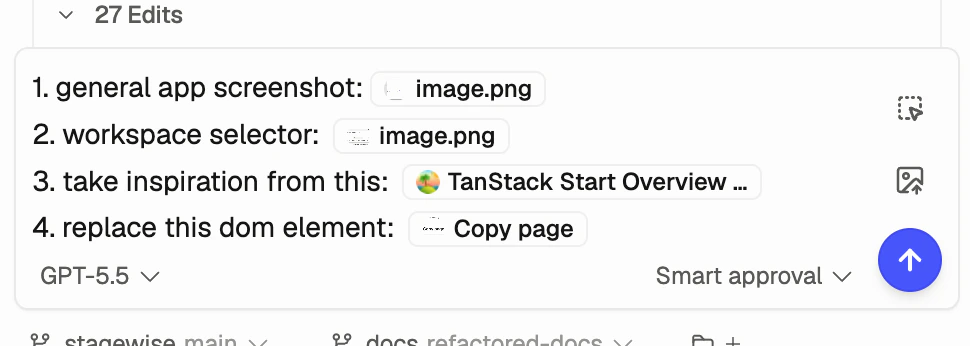
DOM context
When you select an element in the browser viewport, the agent receives:- The element’s HTML structure and DOM position
- Computed CSS styles
- Bounding box and dimensions
- A unique CSS selector path
Example: context in action
Say you type: “Refactor the Button component to use the new design tokens.”
All of this feeds into one reasoning pass. The more relevant context you provide, the more predictable the output.
What’s next
Workspaces
Connect multiple project folders for full-stack agent workflows.
Skills & plugins
Create custom skills and use built-in plugins to extend your agents.
Skills & context reference
Step-by-step guide to generating WORKSPACE.md and configuring skills.