
Documentation Index

Fetch the complete documentation index at: https://docs.stagewise.io/llms.txt

Use this file to discover all available pages before exploring further.

A workspace is a folder on your machine that you grant the agent access to. Unlike most AI coding tools that work in a single project directory, stagewise connects multiple workspaces at once — agents can work across projects, shared libraries, or configuration folders in a single session. Each connected folder becomes a mount point inside the agent’s unified environment. The agent reads from the shared library, modifies the frontend, and checks backend types — all in one message.

Connecting workspaces

  1. Click the workspace panel in the sidebar
  2. Click Add workspace and select a folder
  3. The workspace appears in the panel — the agent can now access it
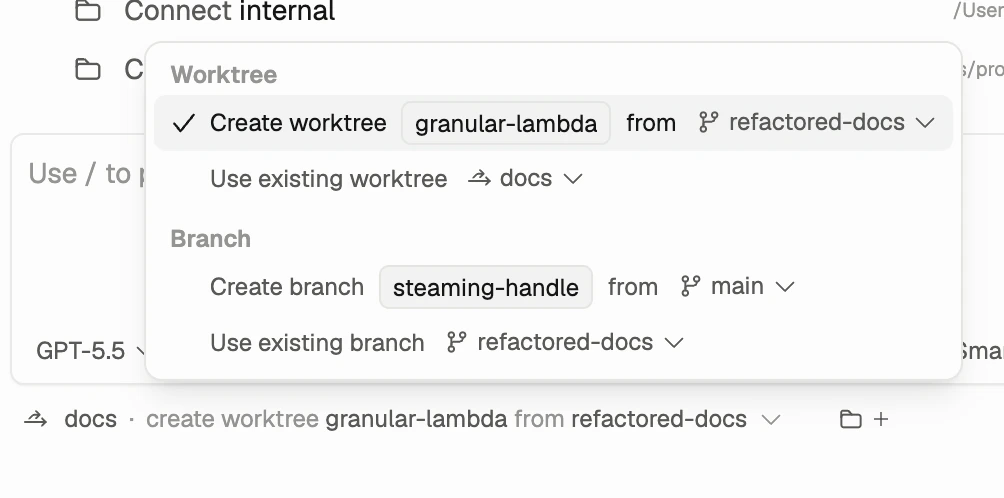
There’s no limit to how many workspaces you can connect. Disconnect a workspace at any time to revoke access. Workspace selector showing create worktree, use existing worktree, create branch, and use existing branch options Workspaces can point at existing folders, branches, or isolated worktrees depending on how you want the agent to work.

What agents can do with workspaces

Once connected, agents can:
  • Read any file or directory
  • Create, edit, and delete files
  • Search code with glob patterns and regex
  • Run shell commands with the workspace as working directory
All file changes are tracked in the diff system — nothing happens silently.

How agents see workspaces

Connected workspaces appear as mount points. Auto-generated project analysis in .stagewise/WORKSPACE.md helps the agent understand each workspace:
  • Project type, languages, and runtime
  • Package structure and dependency graph
  • Build scripts and configuration
  • Key files and their purposes
stagewise keeps WORKSPACE.md up to date across sessions. Commit it to source control so your team benefits, or add it to .gitignore.

Multi-workspace workflows

Connecting multiple workspaces enables patterns like:
  • Frontend + Backend — Separate frontend and backend repos as individual workspaces, so agents work across the full stack
  • Shared libraries — Connect a component library alongside your main project, letting agents modify both in context
  • Configuration — Connect a dotfiles or config repo for agents to reference

Workspace safety

Connected workspaces are not sandboxed. The agent operates directly on your filesystem with the same permissions you have. Only connect folders you’re comfortable with the agent modifying.
Every change is tracked and reversible. Use diff review to inspect, accept, or reject changes.

What’s next

Agent context

Understand how WORKSPACE.md, skills, and @mentions give agents project awareness.

How agents work

See the full agent loop — from message to tool use to response.