> ## Documentation Index
> Fetch the complete documentation index at: https://docs.stagewise.io/llms.txt
> Use this file to discover all available pages before exploring further.
# Workspaces — Connect multiple project folders
> Connect multiple workspace folders to the stagewise agentic IDE. AI coding agents can read, write, and modify files across projects, shared libraries, and configuration folders simultaneously.
A workspace is a folder on your machine that you grant the agent access to. Unlike most AI coding tools that work in a single project directory, stagewise connects **multiple workspaces at once** — agents can work across projects, shared libraries, or configuration folders in a single session.
```mermaid theme={null}
graph TD
subgraph "Your machine"
W1[📁 frontend/
React + Tailwind]
W2[📁 backend/
Node.js API]
W3[📁 shared-lib/
Design tokens]
W4[📁 dotfiles/
Config]
end
subgraph "stagewise"
A[Agent instance]
end
W1 -->|"mount"| A
W2 -->|"mount"| A
W3 -->|"mount"| A
W4 -->|"mount"| A
A -->|"Read/write across all mounts"| O[Single reasoning context]
```
Each connected folder becomes a mount point inside the agent's unified environment. The agent reads from the shared library, modifies the frontend, and checks backend types — all in one message.
## Connecting workspaces
1. Click the workspace panel in the sidebar
2. Click **Add workspace** and select a folder
3. The workspace appears in the panel — the agent can now access it
There's no limit to how many workspaces you can connect. Disconnect a workspace at any time to revoke access.
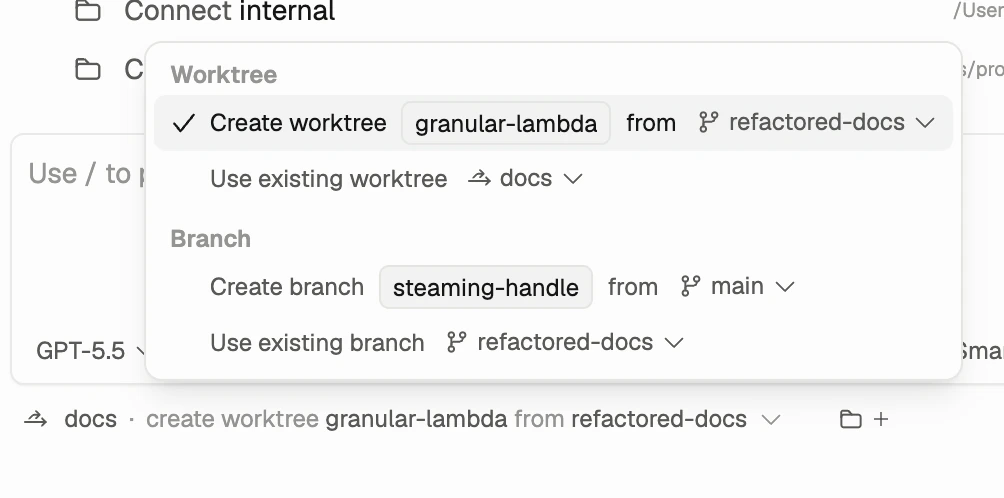 *Workspaces can point at existing folders, branches, or isolated worktrees depending on how you want the agent to work.*
## What agents can do with workspaces
Once connected, agents can:
* Read any file or directory
* Create, edit, and delete files
* Search code with glob patterns and regex
* Run shell commands with the workspace as working directory
All file changes are tracked in the diff system — nothing happens silently.
## How agents see workspaces
Connected workspaces appear as mount points. Auto-generated project analysis in `.stagewise/WORKSPACE.md` helps the agent understand each workspace:
* Project type, languages, and runtime
* Package structure and dependency graph
* Build scripts and configuration
* Key files and their purposes
stagewise keeps WORKSPACE.md up to date across sessions. Commit it to source control so your team benefits, or add it to `.gitignore`.
## Multi-workspace workflows
Connecting multiple workspaces enables patterns like:
* **Frontend + Backend** — Separate frontend and backend repos as individual workspaces, so agents work across the full stack
* **Shared libraries** — Connect a component library alongside your main project, letting agents modify both in context
* **Configuration** — Connect a dotfiles or config repo for agents to reference
## Workspace safety
Connected workspaces are **not sandboxed**. The agent operates directly on your filesystem with the same permissions you have. Only connect folders you're comfortable with the agent modifying.
Every change is tracked and reversible. Use [diff review](/core-concepts/diff-review) to inspect, accept, or reject changes.
## What's next
Understand how WORKSPACE.md, skills, and @mentions give agents project awareness.
See the full agent loop — from message to tool use to response.
*Workspaces can point at existing folders, branches, or isolated worktrees depending on how you want the agent to work.*
## What agents can do with workspaces
Once connected, agents can:
* Read any file or directory
* Create, edit, and delete files
* Search code with glob patterns and regex
* Run shell commands with the workspace as working directory
All file changes are tracked in the diff system — nothing happens silently.
## How agents see workspaces
Connected workspaces appear as mount points. Auto-generated project analysis in `.stagewise/WORKSPACE.md` helps the agent understand each workspace:
* Project type, languages, and runtime
* Package structure and dependency graph
* Build scripts and configuration
* Key files and their purposes
stagewise keeps WORKSPACE.md up to date across sessions. Commit it to source control so your team benefits, or add it to `.gitignore`.
## Multi-workspace workflows
Connecting multiple workspaces enables patterns like:
* **Frontend + Backend** — Separate frontend and backend repos as individual workspaces, so agents work across the full stack
* **Shared libraries** — Connect a component library alongside your main project, letting agents modify both in context
* **Configuration** — Connect a dotfiles or config repo for agents to reference
## Workspace safety
Connected workspaces are **not sandboxed**. The agent operates directly on your filesystem with the same permissions you have. Only connect folders you're comfortable with the agent modifying.
Every change is tracked and reversible. Use [diff review](/core-concepts/diff-review) to inspect, accept, or reject changes.
## What's next
Understand how WORKSPACE.md, skills, and @mentions give agents project awareness.
See the full agent loop — from message to tool use to response.