> ## Documentation Index
> Fetch the complete documentation index at: https://docs.stagewise.io/llms.txt
> Use this file to discover all available pages before exploring further.
# Agent context — How stagewise agents understand your project
> Understand how AI coding agents in stagewise build context from WORKSPACE.md, skills, AGENTS.md, @mentions, and DOM context. Learn how to give agents the right information for predictable results.
The agent doesn't know about your project by magic — it builds understanding from several sources. Together, these form the agent's **context**: everything the agent knows when processing your message.
```mermaid theme={null}
graph LR
subgraph "Message assembly"
A[Your message]
end
subgraph "Automatic context"
B[WORKSPACE.md]
C[Open files]
end
subgraph "Explicit context"
D[@mention files]
E[@mention tabs]
F[DOM selections]
end
subgraph "Active instructions"
G[Skills SKILL.md]
H[Plugins]
end
A --> M{Agent
reasoning}
B --> M
C --> M
D --> M
E --> M
F --> M
G --> M
H --> M
M --> R[Response + actions]
```
All sources feed into a single reasoning pass, so the agent understands both *what* you're asking and *why* in the context of your project.
## WORKSPACE.md
When you connect a workspace, stagewise generates a `WORKSPACE.md` file in `.stagewise/`. This is the primary way the agent understands your project at a high level:
* Project type, languages, and runtime
* Package structure and dependency graph
* Build scripts and CI configuration
* Key files and their architecture
The agent reads WORKSPACE.md automatically for every workspace. stagewise keeps it up to date across sessions.
Commit `.stagewise/WORKSPACE.md` to source control to share project analysis with your team, or add to `.gitignore` if you prefer.
## Skills
Skills are `SKILL.md` files that give the agent structured instructions for specific tasks. They teach the agent project-specific patterns, workflows, and constraints.
A skill lives in a folder:
```
.stagewise/skills/my-skill/
├── SKILL.md # Instructions the agent follows
├── references/ # Reference files the agent can read
└── assets/ # Supporting files
```
Skills load from two locations in priority order:
1. `.stagewise/skills/` — stagewise-specific (highest priority)
2. `.agents/skills/` — Shared across AI tools
[Learn more about creating skills →](/core-concepts/skills-and-plugins)
## AGENTS.md
An `AGENTS.md` file in your project root can provide custom instructions — coding conventions, style rules, or project-specific patterns.
AGENTS.md is opt-in and disabled by default. It can get outdated and mislead the agent. Use WORKSPACE.md and skills instead.
## @mentions
In the chat, type `@` to give the agent precise, immediate context:
* **@mention files** — Attach a workspace file so the agent reads it immediately
* **@mention tabs** — Attach a browser tab so the agent sees what you're looking at
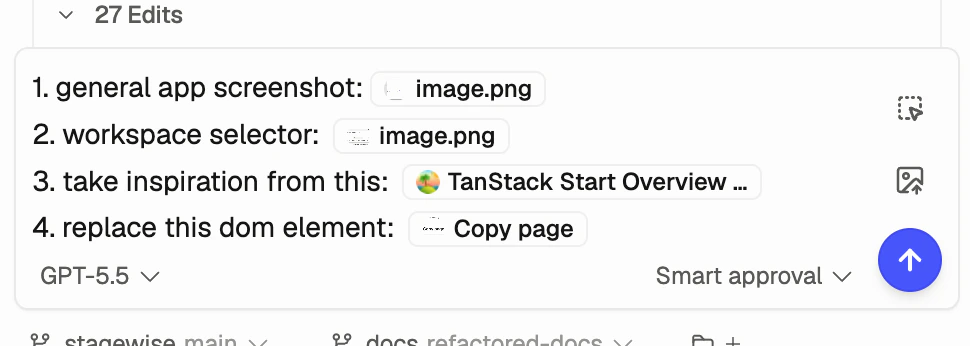 *Context attachments make the prompt specific without forcing you to describe every detail in text.*
## DOM context
When you select an element in the browser viewport, the agent receives:
* The element's HTML structure and DOM position
* Computed CSS styles
* Bounding box and dimensions
* A unique CSS selector path
Point at anything in the browser and say "change this" — the agent knows exactly what you mean. [Learn how →](/reference/dom-context-selector)
## Example: context in action
Say you type: *"Refactor the Button component to use the new design tokens."*
| Source | What the agent learns |
| -------------------------- | ---------------------------------------------------------- |
| `WORKSPACE.md` | It's a React + Tailwind project with a design token system |
| `@mention Button.tsx` | Sees the current component code |
| `SKILL.md` (design tokens) | Knows the token naming conventions and migration rules |
| DOM context (the button) | Sees what the button currently looks like |
All of this feeds into one reasoning pass. The more relevant context you provide, the more predictable the output.
## What's next
Connect multiple project folders for full-stack agent workflows.
Create custom skills and use built-in plugins to extend your agents.
Step-by-step guide to generating WORKSPACE.md and configuring skills.
*Context attachments make the prompt specific without forcing you to describe every detail in text.*
## DOM context
When you select an element in the browser viewport, the agent receives:
* The element's HTML structure and DOM position
* Computed CSS styles
* Bounding box and dimensions
* A unique CSS selector path
Point at anything in the browser and say "change this" — the agent knows exactly what you mean. [Learn how →](/reference/dom-context-selector)
## Example: context in action
Say you type: *"Refactor the Button component to use the new design tokens."*
| Source | What the agent learns |
| -------------------------- | ---------------------------------------------------------- |
| `WORKSPACE.md` | It's a React + Tailwind project with a design token system |
| `@mention Button.tsx` | Sees the current component code |
| `SKILL.md` (design tokens) | Knows the token naming conventions and migration rules |
| DOM context (the button) | Sees what the button currently looks like |
All of this feeds into one reasoning pass. The more relevant context you provide, the more predictable the output.
## What's next
Connect multiple project folders for full-stack agent workflows.
Create custom skills and use built-in plugins to extend your agents.
Step-by-step guide to generating WORKSPACE.md and configuring skills.